A small acronym, a big shift
MCP the Model Context Protocol is the open standard that lets AI assistants talk to the tools you already use. Until now, connecting an AI model to a timesheet system meant writing scripts, juggling API tokens, or waiting for an integration that never quite arrived.
Today, we are changing that. Temponia is the first online timesheet application to ship a hosted, remote MCP server. If your AI assistant speaks MCP, it now speaks Temponia.
What "remote" actually means for you
Most early MCP integrations run locally: you install something, edit a config file, point it at your laptop, and hope it still works tomorrow. That is fine for developers. It is a wall for everyone else.
A remote MCP server runs in the cloud, hosted by us. You do not install anything. You do not edit JSON files. You add Temponia to your AI assistant the same way you would add Gmail or Notion, sign in once, and you are connected. That is the entire setup.
Built for the people who actually fill in timesheets
Consultants, accountants, designers, project managers, agency owners. The people who lose half an hour every Friday reconstructing their week. Now your AI assistant can do that work for you safely, and with your explicit permission.
Connecting Claude in four steps
The setup below uses Anthropic's Claude as an example, but the same idea applies to any MCP-aware client. From the moment you start until you are issuing your first query: about 60 seconds.
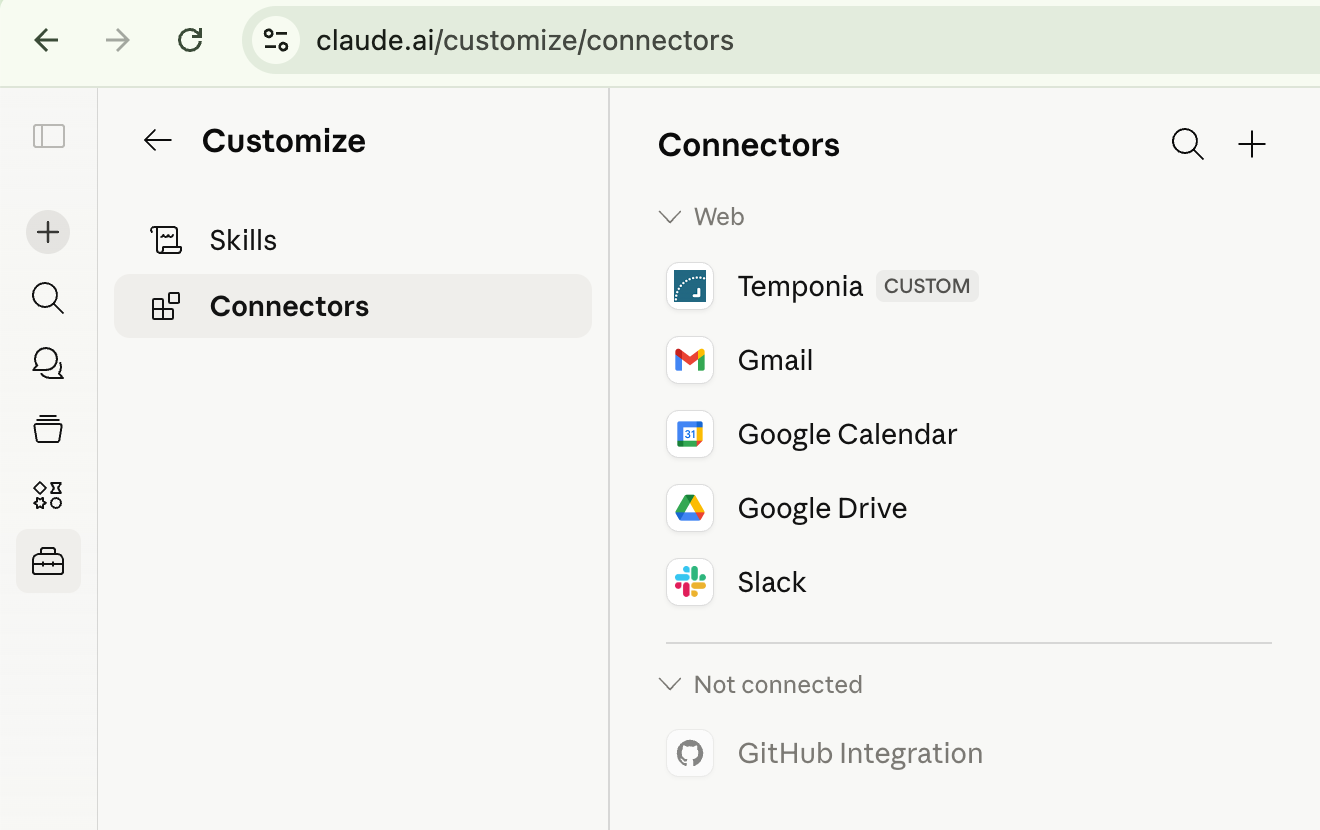
Open Connectors in Claude
In Claude, go to Customize → Connectors and click on the + button top right.
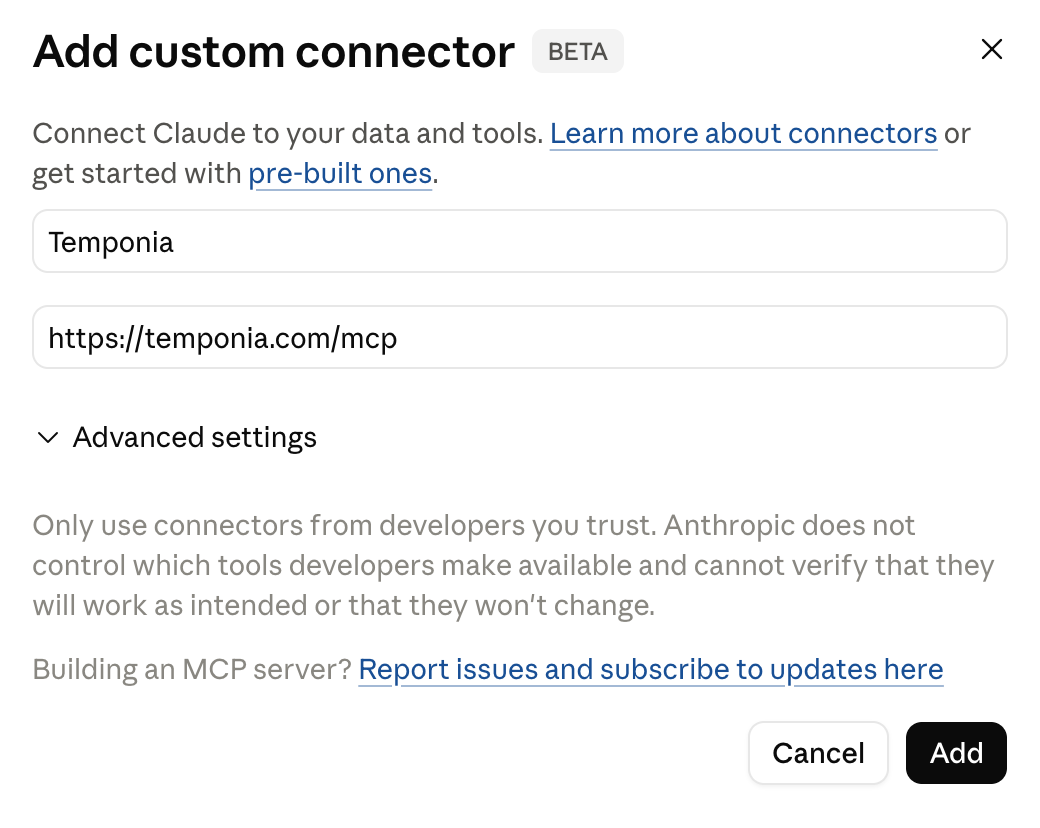
Add the Temponia URL
Fill in Temponia for the name and paste https://temponia.com/mcp as the server URL. Hit Add.
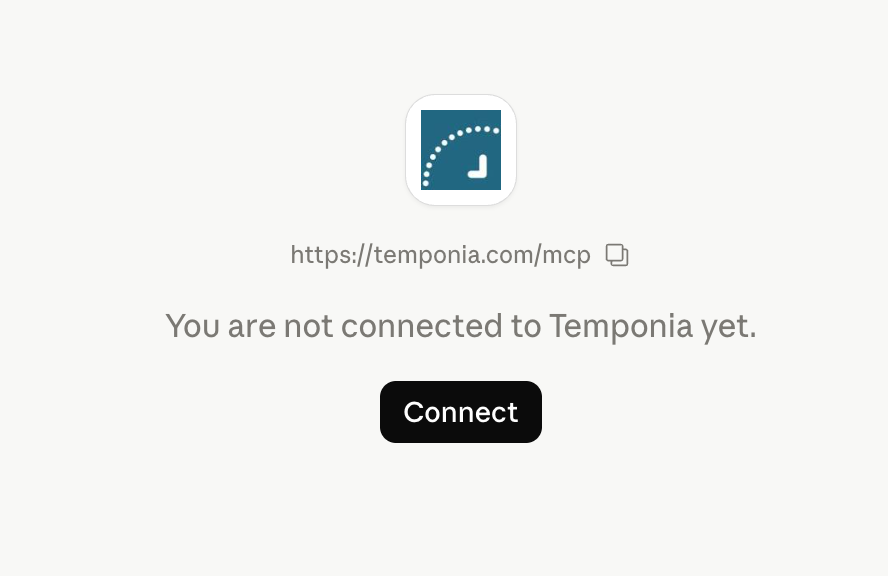
Click Connect
Claude shows the Temponia connector. Click Connect to start the secure sign-in flow.
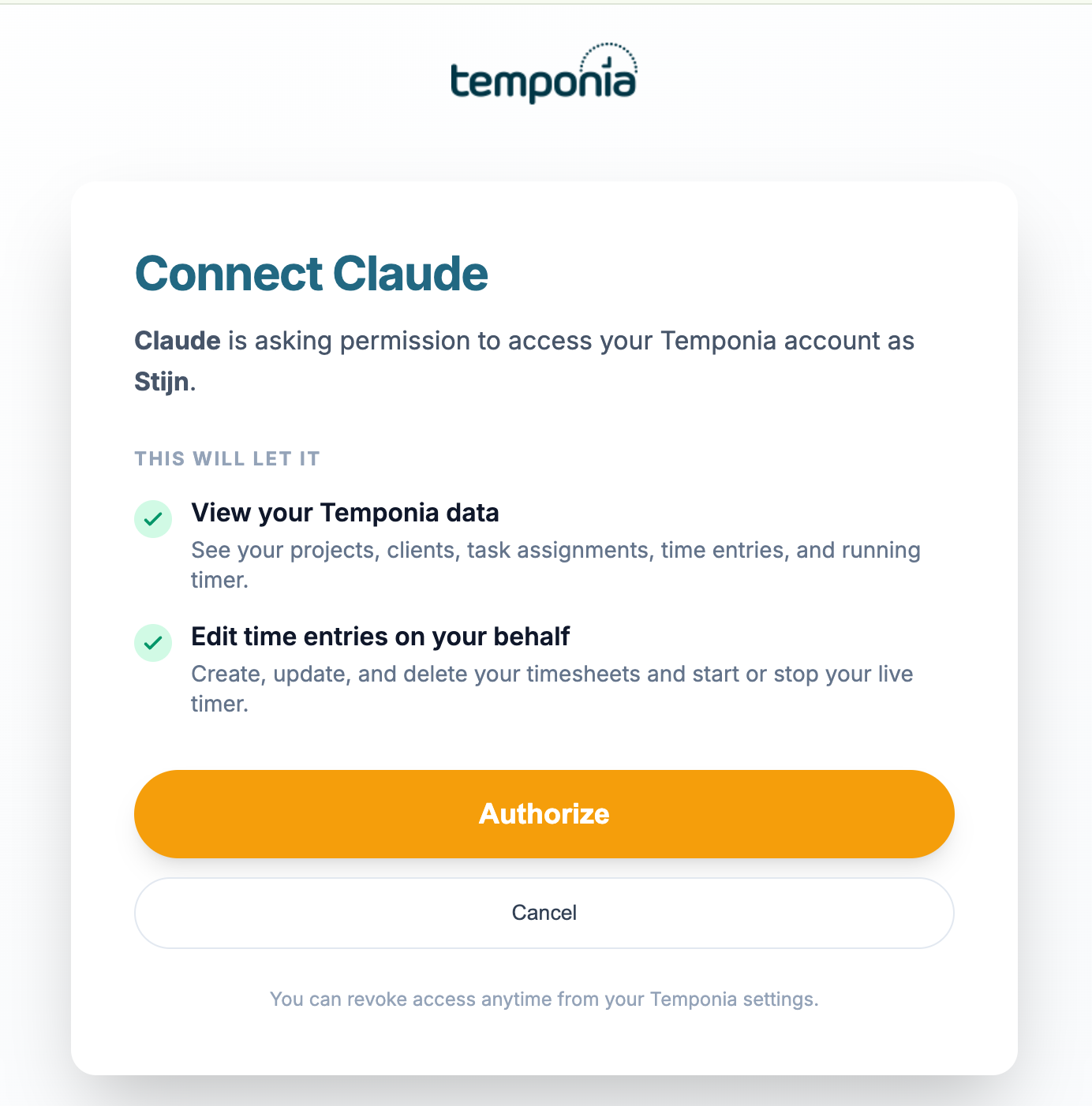
Authorize on Temponia
Sign in to Temponia and approve the two permissions: read your data, and create or update entries on your behalf. Done.
That is it. No API keys to copy. No tokens to rotate. You can revoke access at any time from your Temponia settings.
What can you actually do with it?
Once connected, you can talk to your timesheets the way you talk about them in your head. Ask a question, get an answer. Describe a week, get the entries created.
Get answers without opening a report
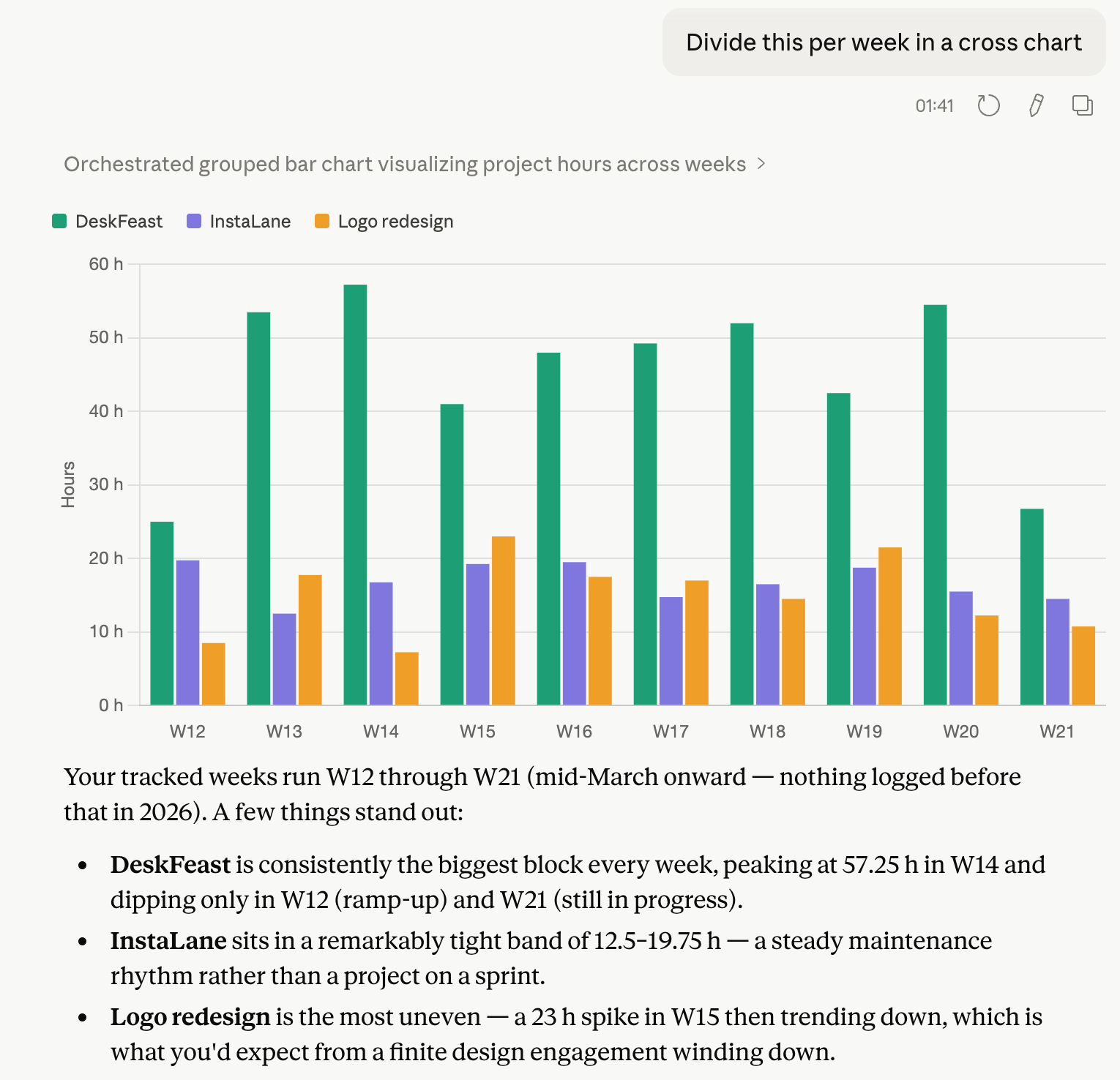
Ranking projects, totalling hours, comparing weeks, spotting trends. Everything that used to live behind a dashboard now lives inside a chat.
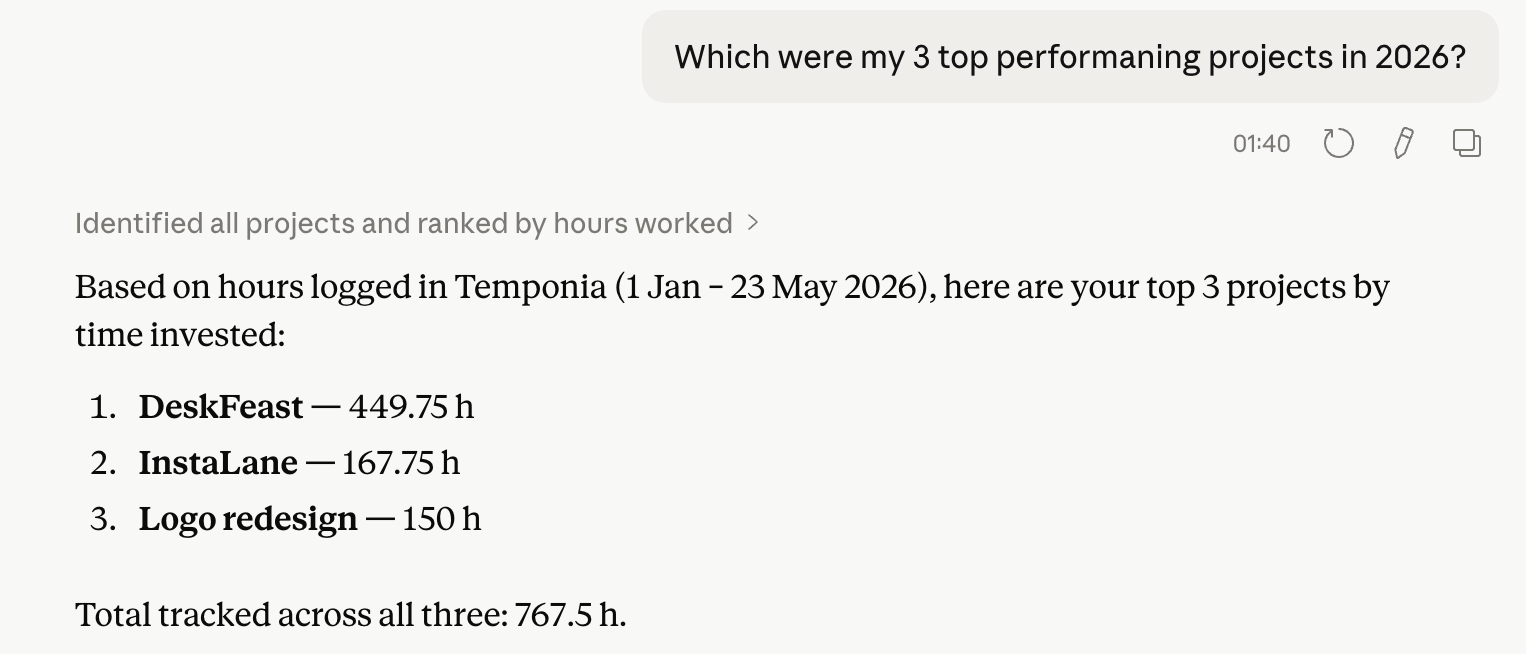
Turn a question into a chart, instantly
Need a visual for a client meeting or an internal review? Just ask. The output is shareable as it is, or copy-paste straight into your slides.
Create timesheets from a sentence
The MCP server is not read-only. With your permission, the AI can also create, update and delete entries. That means you can describe a week instead of typing it in.
Where it gets really powerful: combining apps
This is the part that did not exist before today. Both Claude and ChatGPT now let you plug in multiple connectors (or "apps") at once. The directories are long and growing Gmail and Outlook, Google Calendar, Google Drive, Dropbox, Notion, GitHub, Linear, Slack, HubSpot, Microsoft 365, to name just a handful and Temponia now sits alongside them. The model can see all the ones you have enabled in the same conversation.
Put your calendar and your inbox in the same room as your timesheet, and the whole admin workflow collapses into a single sentence:
The model reads your calendar, scans your inbox, infers the right project for each block, and writes the entries to Temponia. You review, you approve. The Friday afternoon timesheet ritual becomes a two-minute review instead of a 40-minute reconstruction.
Things our early users are already doing
- "Build me a weekly hours report by client and paste it into our project deck"
- "Compare billable vs. internal hours for Q1 and tell me where we are slipping"
- "Generate this month's invoicing export grouped by project, ready for our accountant"
- "From my Outlook calendar last week, draft the timesheet entries I will review before you save"
- "Which clients have I not logged any time against this month?"
- "Take the issues I closed in Linear this sprint and map them to time entries on the right project"
Privacy, permissions, and control
Connecting an AI to your timesheets only works if you stay in charge. A few things to know:
- You authorize once, you can revoke any time. Because Temponia is added inside your AI client, the connection lives there too. Remove it from Settings → Connectors in Claude, or from the equivalent Apps section in ChatGPT, and the access is gone immediately.
- Scoped permissions. The Temponia authorization screen tells you exactly what the model can do: read your projects and time entries, and create or update entries on your behalf. Nothing else.
- OAuth, not API keys. No secrets to copy around, no tokens lingering in chat logs.
- Your data stays on Temponia. The MCP server exposes tools, not bulk data dumps.
What is AI time tracking?
AI time tracking means letting an AI assistant do the time-entry work for you instead of filling in a timesheet by hand. With Temponia connected to Claude or ChatGPT, you describe your work in plain language and the AI creates, updates, or summarises your timesheet entries. There is no separate app to learn your time tracking happens inside the chat window you already use all day.
Automatic time tracking with AI
Traditional automatic time tracking watches your screen and guesses what you worked on. Temponia takes a cleaner approach: instead of surveilling your desktop, it lets an AI assistant build your timesheet from sources you already trust your calendar and your inbox. Ask Claude or ChatGPT to read last week's meetings and emails, and it drafts the matching entries for you to review. You get the speed of automatic time tracking without the spyware feel, and you stay in control of every entry before it is saved.
How to connect ChatGPT to your timesheet
Temponia is now an official app in the ChatGPT app directory, so there is nothing to paste or configure. Open Temponia in the ChatGPT app directory, add it, sign in to Temponia, and approve the two permissions: read your data, and create or update entries. That is it.
From then on you can ask ChatGPT to log time, build reports, or fill your timesheet from your calendar, exactly like the Claude examples above.
Using Claude for time tracking
Once the Temponia connector is added to Claude, time tracking becomes a conversation. A few things people ask Claude every day:
- "Add 3 hours on the Acme website project this morning."
- "How many billable hours did I log last month, by client?"
- "Fill in yesterday's timesheet from my Google Calendar and let me review it."
- "Which projects am I over budget on this quarter?"
Claude reads and writes straight to Temponia, so the answer or the new entry is ready in seconds.
Frequently asked questions
Can I connect ChatGPT to my timesheet?
Yes. Temponia is an official app in the ChatGPT app directory, so you can add it in a couple of clicks and then log time, build reports, or fill your timesheet by chatting. No API keys or code.
How do I track time with Claude?
Add Temponia to Claude via Customize → Connectors using the URL https://temponia.com/mcp, authorize once, then just ask Claude to create entries, summarise hours, or build your timesheet from your calendar.
What is an MCP timesheet?
An MCP timesheet is a time tracking system that exposes a Model Context Protocol (MCP) server the open standard AI assistants use to connect to tools. Temponia's MCP server lets Claude, ChatGPT, and any MCP-compatible client read and write your timesheet securely.
Does AI time tracking with Temponia need API keys or code?
No. You connect through OAuth inside your AI assistant: sign in once, approve the permissions, done. There are no API keys to copy and nothing to install.
Available today
The Temponia remote MCP server is live for every Temponia account at https://temponia.com/mcp. It works as an official app in ChatGPT, as a custom connector in Claude, and with any other MCP-compatible client out of the box. No plan upgrade required.
This is the first piece of a broader push: we want Temponia to be the timesheet that disappears into the tools you already use. If your week lives in a calendar, an inbox, and a chat window your timesheet should live there too.
Add Temponia to your AI assistant in 60 seconds
Drop the Temponia connector into Claude, the Temponia app into ChatGPT, or wire it into any other MCP client and let it do the admin for you.